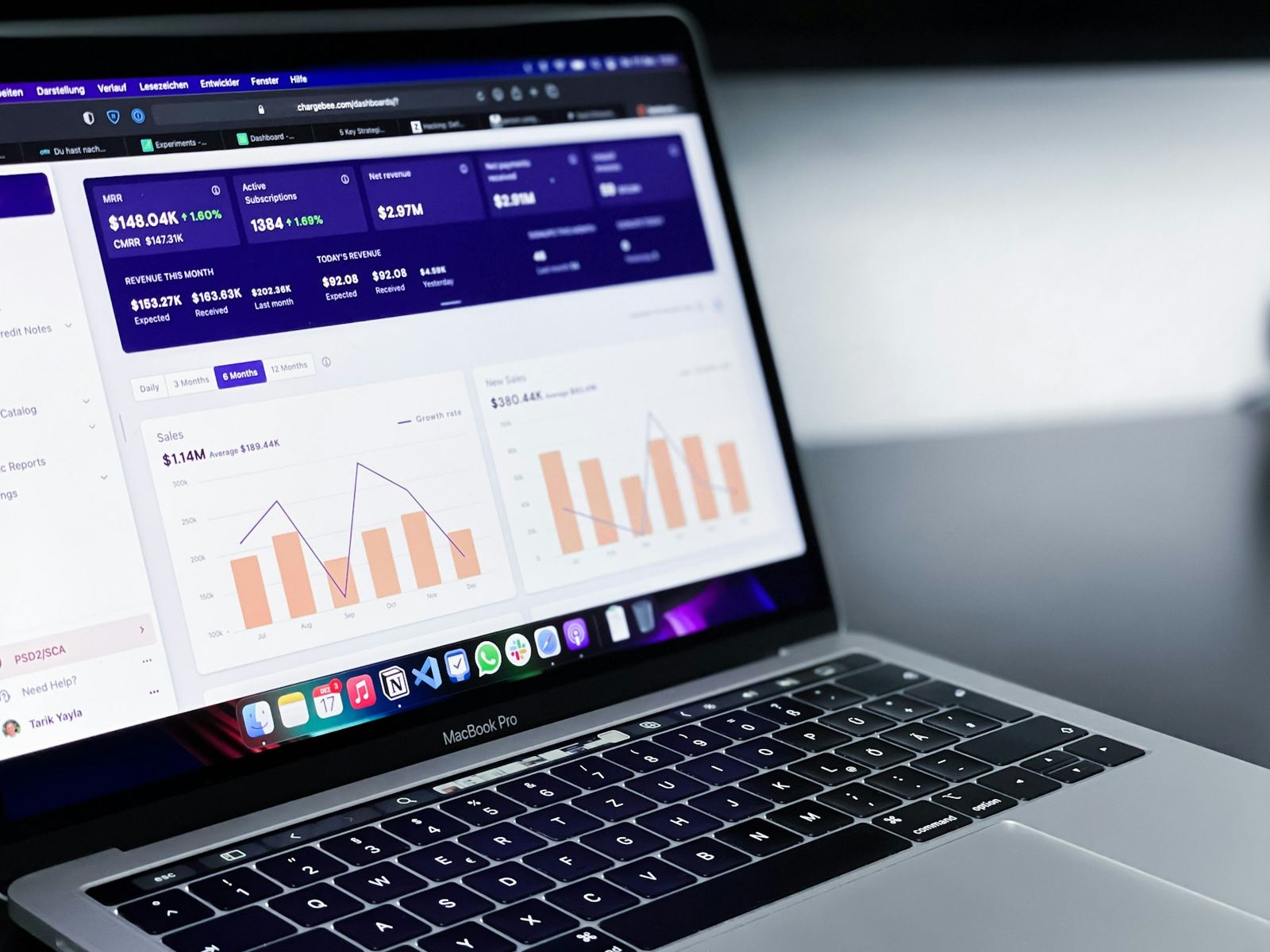

To find out which marketing channels are working, you need to track where each enquiry comes from, then follow it through to see whether it became a paying customer. That means combining three things: your website tracking (so you can see where visitors came from), your phone and form tracking (so you can see which enquiries they led to), and a simple record of who actually bought.
You do not need expensive software or a marketing degree to do this. A free Google tool, a few tagged links, a quick question when someone gets in touch and a spreadsheet will get most small businesses 90% of the way there.
This guide walks through each step in plain English, with a worked example, so you can stop guessing and start putting your budget where it earns its keep.
Start with the question that really matters
Most business owners begin by asking, "Which channel gets the most clicks?" It is an understandable place to start, but clicks do not pay the bills. A better question is: which channel brings me customers, and what does each customer cost me?
A "channel" is simply a route customers use to find you. Typical examples are Google search results (unpaid), Google Ads, Facebook and Instagram ads, your Google Business Profile (the free listing that appears on Google Maps), email, word of mouth and referrals.
The trick is that different channels show their value at different points. Some bring lots of cheap enquiries that rarely buy. Others bring fewer enquiries that nearly always turn into sales. You only see that if you track the whole journey, not just the first step.
Step 1: Get the basics of GA4 in place
GA4 is short for Google Analytics 4. It is Google's free tool that records what people do on your website: where they came from, which pages they looked at and which actions they took. If you only set up one thing from this article, make it this.
Tell GA4 what counts as a success
Out of the box, GA4 counts visits. It does not know that a contact form submission or a click on your phone number is what you actually care about. You have to tell it, by marking those actions as key events (these used to be called "conversions"). A conversion simply means a visitor doing something valuable, such as enquiring or booking.
Typical key events for a small business include:
- Submitting a contact or booking form
- Clicking a phone number on a mobile
- Clicking an email address
- Completing a purchase (for online shops)
If you want to understand how many visitors turn into enquiries, my guide to how to calculate your website conversion rate explains the sums step by step.
Where to look
Once key events are set up, open the Traffic acquisition report in GA4. It shows how many visitors arrived from each source, such as organic search (unpaid Google results), paid search, paid social, email and direct. Check how many key events each source produced, not just how many visits.
A word of caution: GA4 is good, but not perfect. You will often see a chunk of traffic labelled "Direct" or "Unassigned". That usually means GA4 could not work out where the visitor came from. The next steps help fill those gaps.
If you would rather have this set up properly by someone who does it every day, that is part of my analytics, tracking and CRO support (CRO means conversion rate optimisation, which is making your website better at turning visitors into enquiries).
Step 2: Tag your links with UTM codes
UTM tags are short bits of text added to the end of a web address. They tell GA4 exactly where a click came from, so it does not have to guess. They are especially useful for email newsletters, social posts, QR codes, printed leaflets and any ad you run.
Here is an example of a tagged link for a spring offer promoted on Facebook:
https://www.yourbusiness.co.uk/spring-offer?utm_source=facebook&utm_medium=paid_social&utm_campaign=spring_offer
Reading it from left to right:
- utm_source is where the click came from (facebook, google, newsletter).
- utm_medium is the type of channel (paid_social, email, cpc, qr_code).
- utm_campaign is the name of the promotion (spring_offer).
A few simple habits will save you headaches:
- Use lower case only. "Facebook" and "facebook" show up as two different sources.
- Keep the names consistent. Agree your labels once and write them in a spreadsheet.
- Do not tag links between pages on your own website, as this can muddle your data.
Google offers a free Campaign URL Builder that creates tagged links for you, so there is no need to type them by hand.
Step 3: Track calls and forms
For many local businesses, the phone is the most valuable channel, and it is the one most often missed. Someone clicks your ad, sees your number, picks up the phone and GA4 never hears about it.
Call tracking
Call tracking gives different numbers to different channels, or shows a unique number to visitors depending on where they came from. When someone rings, you can see which channel prompted the call. Some tools also record the call (with the right notices in place) so you can hear whether it was a genuine sales enquiry or a wrong number.
If you run Google Ads, you can also use call extensions and call reporting inside the Google Ads account. If your Google Business Profile brings in a lot of calls, the profile's own insights show how many people tapped to call, which is a useful signal even if it is not the full picture.
Form tracking
Forms are easier. Ideally, when someone submits your contact form, GA4 records a key event, and the enquiry email you receive includes the source. Many website form plugins can capture UTM details in hidden fields, so you can see in the email itself that the person came from, say, facebook / paid_social / spring_offer.
Check that your "thank you" message or page works properly, since that is often what GA4 uses to count a successful form. I regularly see sites where the form works but nothing is being recorded, so test it yourself by sending an enquiry.
Step 4: Simply ask "How did you hear about us?"
Software cannot see everything. Someone might see your Instagram ad, ask a friend about you, search your name on Google a week later and then ring. GA4 would likely credit "organic search" or "direct", but the real story involved at least three touchpoints.
That is why I always recommend asking. Add a question to your enquiry form, and train whoever answers the phone to ask it naturally: "Just so I know what's working, how did you hear about us?"
Tips to get useful answers:
- Use a drop-down list on your form with options such as Google search, Google Maps, Facebook or Instagram, recommended by a friend, leaflet or flyer, and other.
- Add a free-text box too. Customers often tell you more in their own words, such as "saw your ad then read your reviews".
- Ask at booking or first visit as well as at enquiry. People are often happy to explain.
Treat what people say as a clue, not a verdict. Compare it with your GA4 data. If lots of customers say "Google" but your tracking shows little organic traffic, there is probably something to investigate.
Step 5: Record outcomes in a CRM or simple notes
A CRM (customer relationship management system) is just a tidy place to store details of your enquiries and customers. It can be a proper tool such as HubSpot, or simply a spreadsheet or notes in your booking system. What matters is that you record three things for every enquiry:
- The date and the source (from UTM tags, call tracking or what they told you)
- Whether they became a customer
- How much they spent, or the value of the sale
Do not forget offline sales
If someone enquires online but buys in your shop, on the phone, at a consultation or after a quote, GA4 will not know. This is where many small businesses lose track. The fix is a quick monthly habit: go through the list of enquiries and mark which ones turned into paying customers. It takes 15 minutes and it is the most valuable part of the whole process.
For example, if you run a salon, a personal trainer's studio or a trade business, your booking diary or quote log can double as your CRM. Add a "source" column and you are done.
Step 6: Compare cost per lead and cost per customer
Now for the useful bit. Once you know how many enquiries and customers each channel produced, you can compare what they cost.
- Cost per lead is what you spent divided by the number of enquiries. I explain this in more detail in how to calculate cost per lead.
- Cost per customer is what you spent divided by the number of people who actually bought.
- ROAS (return on ad spend) is how many pounds of sales you get back for every £1 spent on ads. There is a full walk-through in how to calculate ROAS.
A worked example (hypothetical)
Imagine a physiotherapy clinic in Kent that spends £600 on Google Ads and £400 on Facebook and Instagram ads in a month.
- Google Ads: 20 enquiries, 8 new patients. Cost per lead £30, cost per new patient £75.
- Facebook and Instagram: 40 enquiries, 4 new patients. Cost per lead £10, cost per new patient £100.
If the clinic only looked at cost per lead, Facebook would appear three times cheaper. But Google brings in patients for less money, because people searching for a physio are often ready to book. The Facebook leads might still be worth having, perhaps with a better follow-up process, but you would not know any of this without tracking through to customers.
A real example of the difference
In my work with Halo Gym in Tunbridge Wells, a Meta Ads 50% off campaign cost £474.59 in ad spend and produced 100 membership enquiries. That is roughly £4.75 per enquiry. 49 of those enquiries became new paying members, so the cost per new member was £9.69. Both numbers are useful, but only the second tells you what winning a customer really costs. You can read the full story in the Halo Gym Meta Ads case study. Results vary from business to business, so treat this as an illustration of the method, not a promise.
A simple monthly spreadsheet
Here is a layout you can build in Google Sheets in about ten minutes. Make one row per channel and one tab per month (or one long sheet with a month column).
- Channel (Google Ads, Facebook and Instagram ads, organic search, Google Business Profile, referrals, email, other)
- Spend (ad spend plus any fees for that channel)
- Visits (from GA4, where relevant)
- Enquiries (forms, calls and messages combined)
- Customers (enquiries that turned into paying customers)
- Revenue (what those customers spent)
- Cost per lead (spend divided by enquiries)
- Cost per customer (spend divided by customers)
- Notes (anything unusual, such as a promotion, holiday or website change)
Fill it in at the same point each month, for example the first Friday. After three months you will begin to see patterns. After six, you can make confident decisions about where to spend more and where to pause.
Do not forget unpaid channels. Organic search, your Google profile and word of mouth have no ad spend, but they still take time and effort. Note roughly what you invest so you can judge them fairly.
Common mistakes to avoid
- Judging by clicks or likes. They are interesting, but they are not customers.
- Changing too much at once. If you alter your website, ads and pricing in the same month, you will not know what made the difference.
- Ignoring phone calls. For local businesses, these are often the best leads.
- Judging too early. Some channels, particularly SEO, take longer to show results than paid ads.
- Expecting perfect data. It will never be 100% accurate. Aim for good enough to make better decisions.
Frequently asked questions
What is the easiest way to see which marketing channels are working?
Start with a monthly spreadsheet that lists each channel, how much you spent, how many enquiries came in and how many became customers. Then add GA4 and the question "How did you hear about us?" to give you the source for each enquiry.
Do I need to pay for tracking tools?
Not to begin with. GA4, Google's Campaign URL Builder and Google Sheets are all free. Paid call tracking or a CRM can help as you grow, but they are not essential on day one.
Why does GA4 show lots of "Direct" traffic?
"Direct" usually means GA4 could not identify where the visitor came from. It can include people typing your address, but also clicks from apps, some emails and links without tags. Using UTM tags and asking customers how they found you helps reduce the mystery.
How long should I track before making decisions?
Ideally three months, and longer for channels like SEO. A single month can be skewed by seasons, holidays or one big customer. Look for trends rather than reacting to one set of numbers.
What if customers buy offline or by phone?
That is very common. Record the source of every enquiry in your diary, booking system or CRM, and mark which ones became customers. A quick monthly review is all you need to connect offline sales back to the channel that started the journey.
Want help working out what is bringing you customers?
If your numbers feel confusing, or you suspect some of your budget is going to waste, I can help. A digital marketing audit looks at your tracking, your channels and your website, and gives you clear, practical next steps.
You can request a free digital audit or simply get in touch for a friendly chat. Digital marketing agency with a human touch: you will work directly with me, and if we grow you, we grow together.
Want help putting this into practice?